Quests
Features · Quests
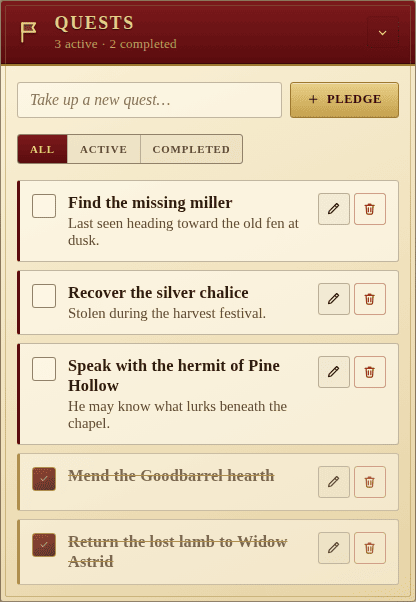
The Quests panel is the party’s writ — the list of errands they have pledged to see through. Each quest carries a title, optional notes, and an active/completed state.
Adding and editing
Type a title into the “Take up a new quest…” field and press Enter or Pledge to add it. Each entry can be expanded into an editor that lets you rewrite the title and add longer notes — details, hooks, gossip — on a second line. Empty titles are rejected; submitting an empty edit cancels.
Graph view
The List / Graph toggle just under the input swaps the writ for a left-to-right DAG of the quests, drawn from their dependsOn edges that the list-view editor already exposes. Roots sit on the leftmost column; each child quest moves one column past the deepest of its prerequisites.
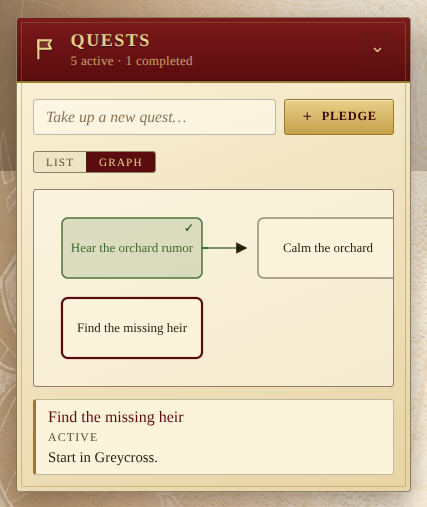
- Green node — completed quest.
- Solid node — active and ready to take up.
- Clicking a node opens a small detail panel below the canvas with the quest’s title, status (Active / Completed) and notes.
- The view is read-only; editing still happens in the list view to keep the graph uncluttered.
Locked quests stay hidden
A quest with at least one open prerequisite is not drawn at all — neither as a card nor as a destination for an arrow. The graph only shows what the table already knows about, matching how the Legacy of Dragonholt book itself reveals paragraphs only after they’re unlocked. The moment a prerequisite is marked done, the newly-unlocked quest appears in its column with the edge from its parent in tow.
If you want a retrospective overview of the whole writ after the campaign — including everything that was once locked — the list view already shows every quest, dependencies and all.
The active view is remembered per device under lod:pref:quests-view.
Quest log
The Quests panel lives in the notebook column, but you don’t have to scroll to it for a quick glance. The quest log is an optional, unobtrusive overlay summoned without disturbing the layout:
- the small scroll button in the header tool row, or
- the Q shortcut (ignored while you’re typing in a field), or
- dismissed again with Esc or a click outside.
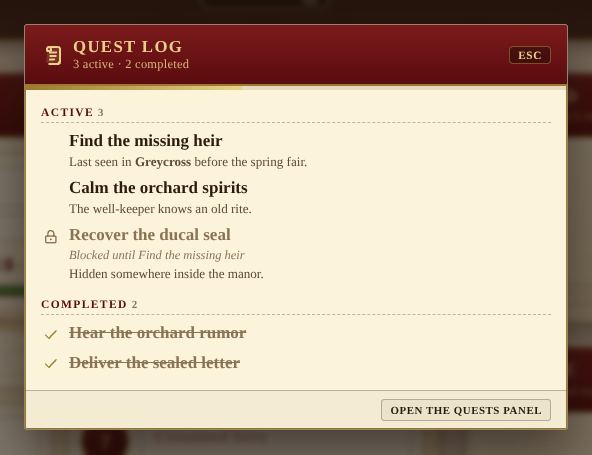
It reads the same data as the panel, so it always reflects the latest state — including edits pushed by other players. Active quests group first (blocked ones flagged with their unfinished prerequisite), completed pledges sit below, and a slim bar tracks overall progress. The log is read-only; the Open the Quests panel link in the footer reveals the panel for any real editing.
Overview
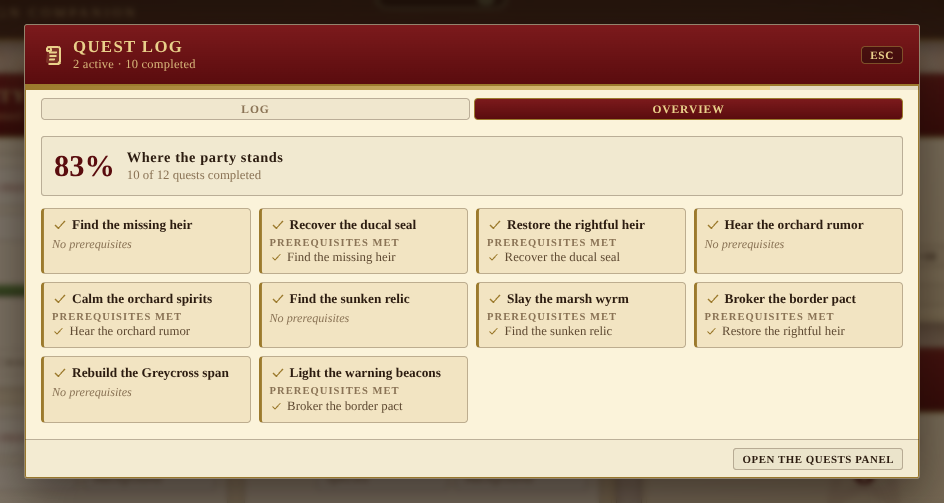
A Log / Overview toggle sits at the top of the log. Where the log lists everything still to do, the overview answers a different question — where do we stand, and what got us here? It opens with a standing card (the share of quests completed, as a percent) and then a tile for every completed quest.
Each tile names the prerequisites that quest cleared — the completed pledges that unlocked it — so the road already walked is laid out in full. Quests that stood on their own simply read No prerequisites. The view is a pure summary: click any tile and the log jumps back to that quest, briefly highlighting its entry.
To take a long campaign in at a glance, the writ unrolls wider for the overview — the tiles lay out as a multi-column tapestry rather than a narrow, scroll-heavy single file — and rolls back to the compact width when you return to the log.
Filters
The three filter chips above the list scope what’s shown:
- All — every quest, open or closed.
- Active — only outstanding pledges.
- Completed — only finished quests.
Each entry also has a per-row checkbox (mark done / undo) and a trash
button to remove it. The subtitle of the panel keeps a running count
(<n> active · <m> completed).
Migration
Older saved data with bare quest strings is upgraded on read into the modern
{ id, title, notes, isDone } shape, so you never lose work from earlier
versions of the app.